Best AI Video Editing Software for YouTube Creators
This article contains affiliate links. If you buy through them, we may earn a commission at no extra cost to you.
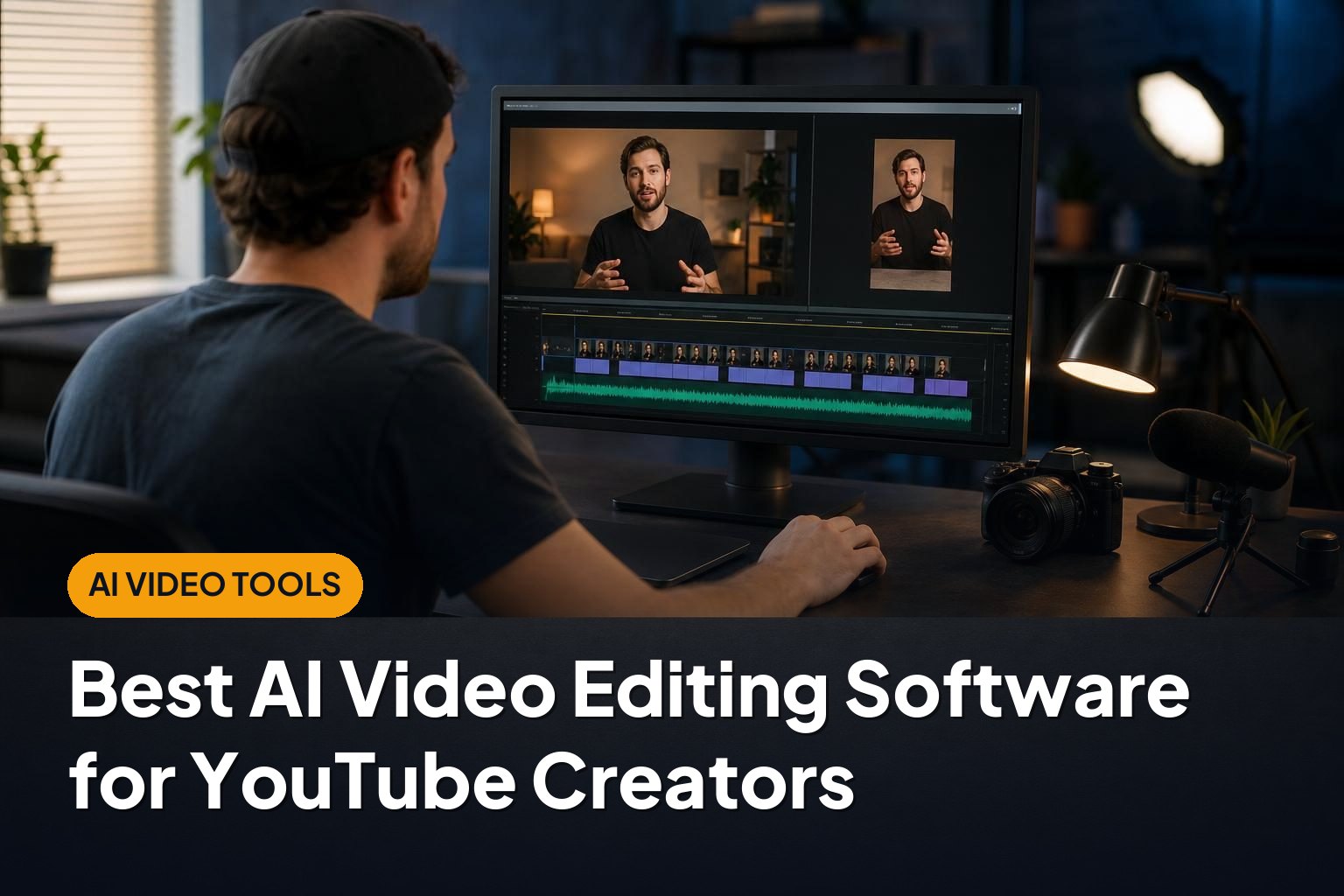
The best AI video editing software for YouTube depends on what slows you down: cutting long recordings, cleaning up audio, adding captions, or turning full-length videos into Shorts. The tools below suit different workflows, from simple talking-head edits to polished productions with detailed creative control.
This article is part of our guide: AI Video Software: A Guide to Generators, Avatars, and Editing Tools
Quick Picks: Best AI Video Editors for YouTube
- Descript: Best for editing interviews, tutorials, and talking-head videos through a transcript.
- Adobe Premiere Pro: Best for creators who want AI assistance alongside professional editing tools.
- DaVinci Resolve: Best for advanced editing, color correction, and a workflow with room to grow.
- CapCut: Best for fast, caption-heavy YouTube Shorts.
- Wondershare Filmora: Best for beginners who want an approachable editor with AI shortcuts.
- OpusClip: Best for repurposing podcasts, interviews, and other long videos into short clips.
Feature availability, usage limits, and export restrictions can vary by subscription, device, and region. Check the details of your chosen plan before building a workflow around a particular AI feature.
Descript: Best for Transcript-Based YouTube Editing
Descript makes spoken-word editing feel closer to editing a document than assembling clips on a traditional timeline. It transcribes your recording and lets you remove sections by deleting the corresponding text.
That approach is especially useful for educational channels, interviews, commentary, and screen-recorded tutorials. If most of your editing involves tightening explanations and removing mistakes, working from a transcript can make the process easier to navigate.
Strengths
- Text-based editing: Find a sentence in the transcript and edit the associated recording without repeatedly scrubbing through footage.
- Speech-focused tools: Filler-word removal and audio enhancement can help clean up dialogue.
- Captions and screen recording: Useful features for creators producing instructional or presentation-led videos.
Drawbacks
Transcripts still need checking, particularly for names, technical terms, and recordings with overlapping speakers. Removing every pause or filler word can also make speech sound unnatural.
For elaborate visual storytelling, detailed animation, or complex effects, a conventional timeline editor offers more flexibility. Check transcription and AI usage allowances before committing.
Adobe Premiere Pro: Best for Professional Editing With AI Assistance
Adobe Premiere Pro suits creators who need more than automatic edits. It combines a full editing timeline with AI-assisted features such as speech transcription, text-based editing, and tools for adapting footage to different formats.
It is a strong choice for channels that mix interviews, B-roll, graphics, music, and multiple camera angles. Rather than replacing editing decisions, its AI features help reduce some of the repetitive work around them.
Strengths
- Detailed creative control: Build complex sequences and refine individual cuts, audio levels, and visual elements.
- Transcript-based navigation: Search dialogue and assemble speech-led edits more efficiently.
- Automatic reframing: Help adapt widescreen footage for vertical formats, with manual adjustments where needed.
- Connected production workflow: Useful for creators who also work with Adobe graphics and motion-design applications.
Drawbacks
Premiere Pro has a steeper learning curve than beginner-focused editors. Its subscription model may also be difficult to justify if you only publish occasional, straightforward videos.
Performance depends on your hardware, media formats, and project complexity. AI-assisted framing and transcription should still receive a human review before export.
DaVinci Resolve: Best for Advanced Editing and Color Control
DaVinci Resolve brings editing, color correction, visual effects, and audio post-production into one application. It is particularly appealing to YouTube creators who want to improve production quality without switching between several separate tools.
Its AI capabilities include features powered by the DaVinci Neural Engine, although many advanced options require the paid Studio edition. Check the edition comparison carefully rather than assuming every demonstrated feature is included in the free version.
Strengths
- Comprehensive production tools: Handle editing, grading, effects, and sound within a single project.
- Strong color workflow: Useful for matching cameras and developing a consistent channel look.
- Advanced AI assistance: Studio features such as subject masking and voice isolation can simplify demanding tasks.
- Capable free edition: Offers a substantial starting point for learning and producing YouTube videos.
Drawbacks
Resolve takes time to learn, especially if you explore its dedicated color, audio, and effects workspaces. Some AI processing and complex effects can also place significant demands on your computer.
It may be more software than you need for quick captioned Shorts. Its biggest advantage is depth, not a completely automatic editing experience.
CapCut: Best for Fast, Caption-Heavy YouTube Shorts
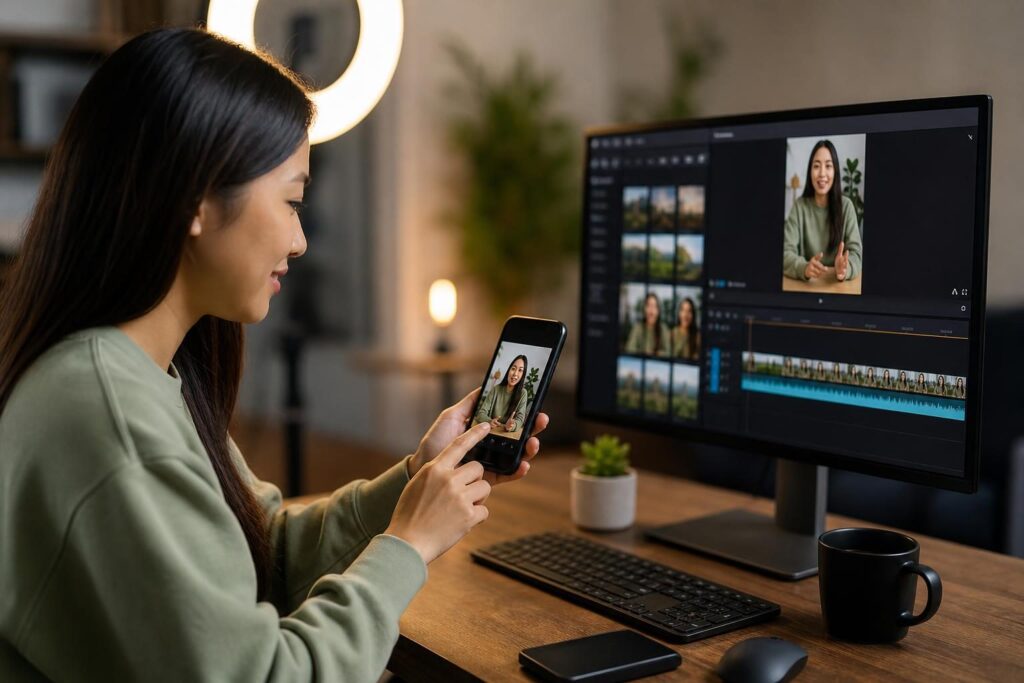
CapCut is a practical option for creators focused on vertical videos, quick edits, and prominent on-screen captions. Its mobile and desktop options make it accessible to people who do not want to begin with a traditional professional editor.
Automatic captions, background-removal tools, and ready-made visual elements can shorten the path from raw recording to a shareable Short. Availability can differ between versions and plans.
Strengths
- Short-form workflow: Convenient for vertical framing, quick pacing, and text-led presentation.
- Accessible caption styling: Helps make spoken content easier to follow on small screens.
- Low barrier to entry: Beginners can start with basic cuts and gradually explore more features.
Drawbacks
Templates and heavily animated captions can make videos look generic if used without restraint. Some effects, assets, and AI features require a paid plan.
Check music and asset licensing for your intended YouTube use, especially on monetized or sponsored videos. For large, complex productions, another editor may provide a more suitable workflow.
Wondershare Filmora: Best for Beginners Who Want AI Shortcuts
Wondershare Filmora sits between lightweight social-video apps and more demanding professional editing software. It offers a familiar timeline while keeping common tasks relatively approachable.
Its AI-assisted tools include options for captions, audio cleanup, and subject cutouts, depending on the version and plan. That makes it worth considering for creators who want help with repetitive tasks without abandoning timeline editing.
Strengths
- Approachable interface: A manageable starting point for learning cuts, transitions, titles, and audio adjustments.
- Convenient creative assets: Built-in effects and title options can help assemble a consistent presentation.
- Useful AI assistance: Can reduce manual work on routine cleanup and formatting tasks.
Drawbacks
Advanced editors may find its controls limiting compared with Premiere Pro or DaVinci Resolve. Relying too heavily on preset effects can also distract from the content.
Review licensing, watermark rules, and any separate AI-credit allowances. Access to the editor does not necessarily mean unlimited access to every AI feature.
OpusClip: Best for Turning Long Videos Into Shorts
OpusClip is a specialized repurposing tool rather than a complete replacement for a video editor. It analyzes longer recordings, suggests shorter segments, and helps format them as captioned clips.
It is most relevant to creators with an existing library of podcasts, interviews, webinars, or talking-head videos. The main benefit is getting an initial set of clip candidates without manually reviewing every minute.
Strengths
- Automated clip suggestions: Provides starting points for extracting short-form content from longer recordings.
- Vertical reframing and captions: Helps prepare clips for a mobile viewing experience.
- Repurposing-focused workflow: Useful when short clips support a longer-form YouTube channel.
Drawbacks
An automatically selected clip may lack context, start too late, or end before the point is clear. Its recommendations are not a guarantee of audience interest or strong performance.
You will still need to review captions, framing, and editorial meaning. Creators who need detailed long-form editing should pair it with a full editor rather than treat it as an all-in-one solution.
Buying Guide: What to Look for in an AI Video Editor
Match the Tool to Your Main Editing Task
Start with the work you repeat most often. Transcript editing suits dialogue-heavy channels; automatic clipping suits repurposing; a full timeline editor suits videos built around B-roll, graphics, and careful pacing.
The best AI video editing software for YouTube is the one that removes your actual bottleneck, not necessarily the one advertising the most AI features.
Check the Full Cost and Export Rules
- Look for watermark restrictions and resolution limits.
- Check transcription minutes, processing allowances, and AI credits.
- Confirm whether the features you need require a higher subscription tier.
- Review commercial-use terms for stock footage, templates, music, and generated assets.
Prioritize Editable Results
Good automation should leave you in control. Make sure you can correct captions, adjust reframing, restore removed pauses, and change suggested cuts. A fast first draft is only useful if you can fix its mistakes.
Consider Hardware and Privacy
Desktop tools may require a capable computer, while cloud-based services depend on upload speeds and remote processing. For unpublished interviews, client recordings, or sensitive footage, review data handling and retention policies before uploading.
Conclusion
Choose Descript for speech-led editing, Premiere Pro or DaVinci Resolve for deeper creative control, and CapCut or Filmora for an approachable workflow. If your main goal is extracting Shorts from existing recordings, OpusClip is the more focused option. Start with your most time-consuming task, then choose a tool that speeds it up without taking away editorial control.